AI Coding Tools
,
API Key Setup
,
Chinese AI Models
,
Cursor AI
,
Developer Tools
,
LLM Integration
,
Qwen
How to Use Qwen in Cursor (Complete Setup Guide 2026)
Why Developers Are Using Qwen in Cursor
Cursor has become one of the most popular AI-powered coding environments, allowing developers to integrate large language models directly into their workflow.
Recently, many developers have started exploring Qwen in Cursor due to its strong multilingual ability, solid reasoning performance, and flexible API integration.
Compared to traditional models, Qwen performs especially well in structured reasoning, multilingual coding tasks, and long-context understanding.
Many developers begin by looking for a Cursor AI API Key solution for Chinese AI models to simplify setup and integration.

👉 Get started faster with pre-configured options here:
Cursor AI API Key
What is Qwen in Cursor?
Qwen is a large language model developed for general reasoning, coding, and multilingual understanding.
When integrated into Cursor, it acts as an external AI engine that enhances development workflows by:
- Generating production-level code
- Supporting multilingual programming tasks
- Debugging and refactoring applications
- Assisting API development
- Handling long-context reasoning tasks
Cursor allows external model integration through API configuration, making Qwen easy to deploy as a coding assistant.

If you want a faster setup experience, you can explore a Cursor Qwen setup guide here:
Cursor Qwen integration guide
Why Use Qwen in Cursor?
There are three main reasons developers choose Qwen in Cursor:
1. Strong Multilingual Capability
Qwen performs particularly well in multilingual codebases and global development teams.
2. Balanced Coding Performance
It is strong in:
- Backend development
- API integration
- Data processing
- Structured reasoning
3. Flexible API Integration
Cursor supports custom API models, making Qwen easy to plug in without complex setup.

Many developers prefer using a Cursor AI model token pack instead of manually configuring everything:
Step-by-Step Guide: How to Set Up Qwen in Cursor
Step 1: Get Your API Key
To use Qwen in Cursor, you need an API key from a supported provider.
This key allows Cursor to communicate with the model securely.
For a simplified setup experience, you can access a ready-made Cursor AI API Key package here:
Step 2: Open Cursor Settings
Inside Cursor:
- Open Settings
- Navigate to AI Models
- Click “Add Custom Model”
Step 3: Configure Qwen Model
Enter the following details:
- Model Name: Qwen
- API Base URL: Your provider endpoint
- API Key: Your key
- Model Type: Chat / Coding
Save configuration after completion.
Step 4: Test the Model
Try a prompt such as:
“Create a REST API in Node.js with authentication”
If configured correctly, Qwen will generate structured output inside Cursor.
Step 5: Optimize Performance
You can improve results by adjusting:
- Temperature (creativity level)
- Max tokens (response length)
- Context window size
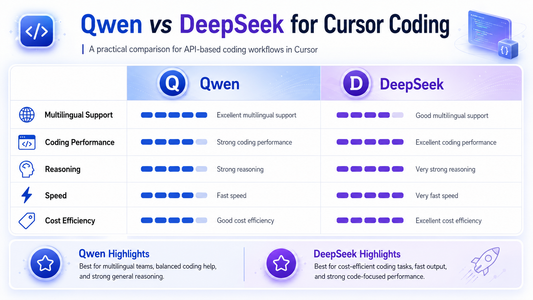
Qwen vs DeepSeek in Cursor
| Feature | Qwen | DeepSeek |
|---|---|---|
| Coding Ability | Strong | Stronger |
| Multilingual Support | Very Strong | Medium |
| Speed | Fast | Fast |
| Reasoning | Strong | Very Strong |
For many developers, Qwen is preferred for multilingual and structured workflows, while DeepSeek is often better for heavy coding tasks.
To explore both models in Cursor, check this setup collection:
👉 Cursor Chinese AI model token pack
Common Issues and Fixes
1. API Key Not Working
- Verify key validity
- Check endpoint URL
2. Model Not Responding
- Confirm network connection
- Ensure model name is correct
3. Cursor Integration Error
- Restart Cursor
- Re-add model configuration
For full setup resources:
Final Thoughts
Qwen is becoming a powerful alternative for developers using Cursor, especially for multilingual development and structured reasoning tasks.
By integrating Qwen into Cursor, developers can improve productivity and reduce reliance on expensive AI models.
For a faster and simpler setup, you can access pre-configured Cursor AI model packages here:
Tags:
Previous
How to Use DeepSeek in Cursor (Complete Setup Guide 2026)
Next
How to Use GLM in Cursor (Complete Setup Guide 2026)